Apple Watch for Kids: Family Setup, Schooltime and Limits
Set up an Apple Watch for a child without an iPhone: what you need, Family Setup steps, Schooltime, shared contacts and what the watch can't do.
Some links in this guide are affiliate links. If you buy through them we may earn a commission, at no extra cost to you. It never changes what we recommend, and we always point out free options built into your devices. As an Amazon Associate we earn from qualifying purchases.How this works.
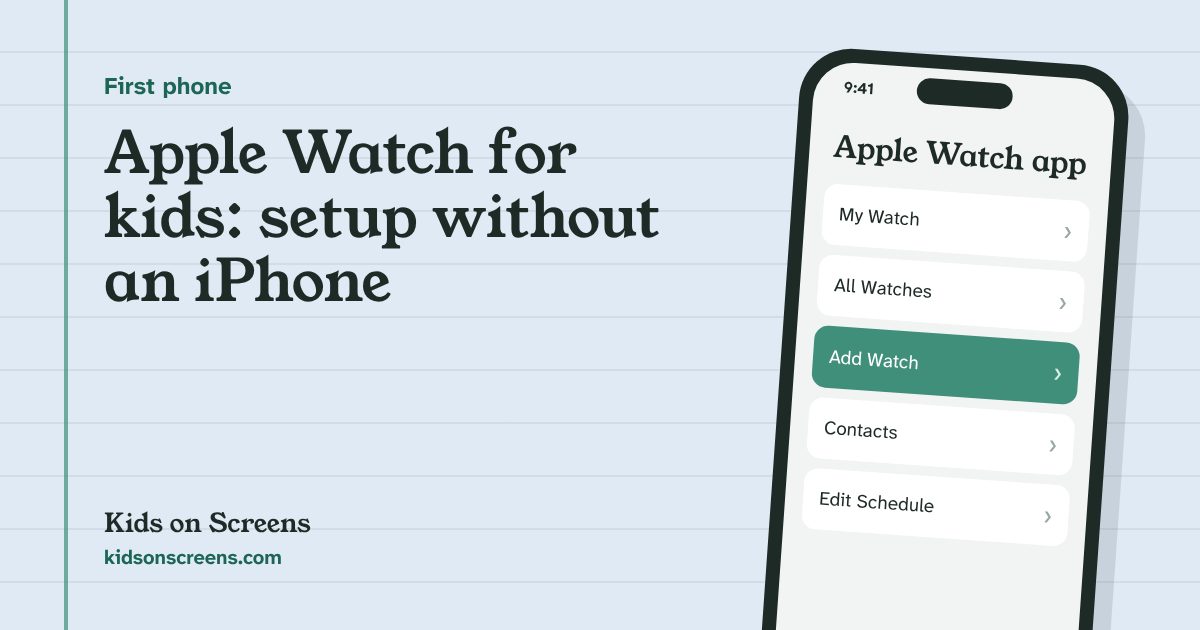
To set up an Apple Watch for a child who doesn’t have an iPhone, use Apple Watch For Your Kids (Apple’s new name for Family Setup). Erase the watch, turn it on, hold it near your iPhone and choose Set Up for a Family Member. Your child needs a cellular Apple Watch and a Child Account in your Family Sharing group. During setup you share trusted contacts, choose Ask to Buy and location, and turn on Schooltime, which quiets the watch during school hours. Afterwards you manage it from the Apple Watch app on your iPhone.
Everything below follows Apple’s own pages, linked in each step: the Apple Support article Set up Apple Watch for a family member (published October 27, 2026), the Apple Watch User Guide for watchOS 27 and Apple’s guide for kids and families. We have not tested these steps on a watch ourselves. Some older how-tos still describe watchOS 7 from 2020; this one is checked against the current pages.
Before you start
- A cellular Apple Watch. On watchOS 27, Apple lists a cellular-capable Apple Watch SE 3 or Apple Watch Series 9 or later (Apple Watch User Guide). Apple’s other pages list older cellular models for earlier watchOS versions (Series 4 or later and SE in the support article, SE or Series 6 or later in the families guide). If you’re buying a watch as a gift, a model that runs watchOS 27 gets the newest controls.
- Your iPhone. You set up and manage the watch from it. Apple says your iPhone has to be within normal Bluetooth range (about 33 feet or 10 meters) to manage settings and update software.
- A Child Account in your Family Sharing group. You must be the family organizer or a parent/guardian. Your own Apple Account needs two-factor authentication (Apple Support). Our iPhone Screen Time guide explains Family Sharing and Child Accounts.
- A mobile plan (for most uses). Apple says a plan isn’t required for setup but is needed for some features, and some corporate plans don’t support it. The child’s carrier doesn’t have to match yours. Carrier prices vary; check with your carrier.
- Your region. The feature isn’t offered everywhere; Apple names Italy, Korea and mainland China as places where it isn’t available.
- A close-fitting band. Apple suggests the Sport Loop, Sport Band or Solo Loop for kids. If the band in the box is too big, a smaller Sport Loop-style band may fit better (check the current price on Amazon).
Step 1: Erase the watch and start pairing
If the watch isn’t new, erase it first. Have your child put it on, then press and hold the side button until the Apple logo appears. Hold the watch near your iPhone and tap Continue when “Use your iPhone to set up this Apple Watch” appears. If it doesn’t appear, open the Apple Watch app on your iPhone and go to:
Then tap Set Up for a Family Member and Continue (Apple Support).
Step 2: Pair it and choose your child
Center the watch’s animation in your iPhone’s viewfinder. If the camera doesn’t work, tap Pair Apple Watch Manually. Then tap Set Up Apple Watch, tap Agree on the Terms and Conditions, choose a text size and create a passcode for the watch.
Next, choose the family member who will wear it. If your child isn’t listed, tap Add Family Member. Enter their Apple Account password and tap Next (Apple Support).
Step 3: Ask to Buy, cellular and Wi-Fi
- Ask to Buy: turn it on if you want to approve downloads and purchases on the watch.
- Cellular: if your carrier supports it, add the watch to your plan now. Otherwise tap Not Now and contact a supported carrier later.
- Wi-Fi: choose whether to share your current Wi-Fi network with the watch.
These screens follow Apple Support: Set up Apple Watch for a family member.
Step 4: Choose features and share trusted contacts
Apple then asks which features to turn on, including Location Services (Find My), Siri, Apple Cash Family, Messages in iCloud, Health Data, Emergency Contacts, Medical ID, Activity and Photos (Apple Support).
For contacts, first turn on Contacts in iCloud on your iPhone:
Then pick the trusted people from your contacts to share with the watch: family, carers, a neighbor your child can call.
Step 5: Set a Screen Time passcode and turn on Schooltime
The last setup screen asks you to set a Screen Time passcode for the watch and turn on Schooltime. Tap OK to finish. To set or change the Schooltime schedule later (Apple Support):
Turn on Turn on Schooltime, choose the days and times, tap Customize Days for different schedules on different days, or Add Time for more than one block a day (for example, before and after lunch).
Your child can leave Schooltime for a moment, for example to check messages or call emergency services, by tapping the display, holding the Digital Crown and tapping Exit. You get a notification each time, and the same Schooltime screen shows the days, times and durations it was unlocked. During scheduled hours, the Schooltime face returns when they lower their wrist. Apple lists Schooltime for cellular Series 6 or later, SE (1st generation) or later, and Ultra.
Step 6: Manage the watch afterwards
To change a setting later, open the Apple Watch app on the iPhone you used for setup (Apple Support):
Then choose the setting to change. With a Child Account on version 27, Apple says parental controls you set “sync automatically to all your child’s devices, depending on the feature availability on each device”, and it names Screen Time Schedules and some content and app settings among the redesigned controls for watchOS 27 (Apple: explore parental controls). So if your child also has an iPad, the schedule you set under Settings > Family > [child] (see our iPad guide) can cover both, where the watch supports it.
With your child’s permission, you can also see health activity such as hearing, time in daylight and heart rate (Apple). Tip from Apple: on the watch, Settings > Battery > Adaptive Power can extend battery life on a watch used without its own iPhone.
What a child’s Apple Watch can’t do
- No management from afar. Your iPhone has to be within about 33 feet to change settings or update the watch. Plan changes for when your child is home.
- Some features are off. Apple lists features that aren’t available on these watches, including ECG, Blood Oxygen, Sleep, Cycle Tracking, Audiobooks, News, Shortcuts and international roaming. Fall Detection and Heart Rate Variability are for users 18 and older; high and low heart rate notifications for 13 and older.
- No card in Wallet. Apple Pay with a credit or debit card isn’t available. Apple Cash Family (US only) is the payment option for users under 18.
- Schooltime is a pause, not a lock. Your child can exit it; you just get told when.
- It doesn’t replace a conversation. A watch with calls, texts and location still needs rules about when it’s worn and who it’s for. Our printable phone contract for kids works for a watch too.
- It isn’t free to run. The setup feature costs nothing, but most families will pay a carrier for the watch’s plan.
Suggested starting points by age
These are our suggestions to discuss as a family, not rules from Apple.
| Age | Contacts | Schooltime | Extras |
|---|---|---|---|
| 5 to 8 | Parents and a few trusted adults | Whole school day | Ask to Buy on, few apps |
| 9 to 12 | Add close friends you know | Class times, free at lunch | Ask to Buy on, location on |
| 13 to 17 | Agree the list together | Agree the schedule | Talk about when a phone makes sense |
The American Academy of Pediatrics suggests starting small with a first device, for example a carrier flip phone with calls and texts only, or a smartwatch or starter smartphone with restricted apps (AAP). A watch fits that first step.
Wrapping a watch or phone this Christmas? Our first phone setup checklist covers the rest, and the Christmas break bucket list has screen-free ideas for the days after. All device guides are on the parental controls hub.
Questions parents ask
Does my child need an iPhone to use an Apple Watch?
No. With Apple Watch For Your Kids (formerly Family Setup) you pair the watch with your own iPhone, and Apple says the child doesn't need their own iPhone, iPad or Mac. Your iPhone is used for setup and to manage the watch.
Does a kid's Apple Watch need its own cellular plan?
The watch must be a cellular model. Apple says a mobile plan isn't required for setup but is needed for some features. If your carrier supports it you can add the watch during setup, or tap Not Now and add it later. The watch's carrier doesn't have to match yours.
Which Apple Watch can I set up for my child?
On watchOS 27, Apple lists a cellular Apple Watch SE 3 or Apple Watch Series 9 or later. Apple's older pages list earlier cellular models (from Series 4 or Series 6 and the first Apple Watch SE) on earlier watchOS versions, without the newest parental controls.
Can my child turn off Schooltime?
They can leave it for a while: tap the display, press and hold the Digital Crown, then tap Exit. You get a notification each time, and the Apple Watch app shows the days, times and how long Schooltime was unlocked. During scheduled hours, Schooltime comes back when they lower their wrist.
Can I see where my child is with Apple Watch?
Apple says the feature lets a child share their location with you. During setup you choose whether to turn on Location Services (Find My) on the watch.
Planning a first phone? See every first-phone step in order.