How to Set Up Screen Time on Your Child's iPhone (iOS 27)
Set up Screen Time on your child's iPhone in iOS 27, step by step: daily schedule, school hours, time allowances, contacts, websites and the passcode.
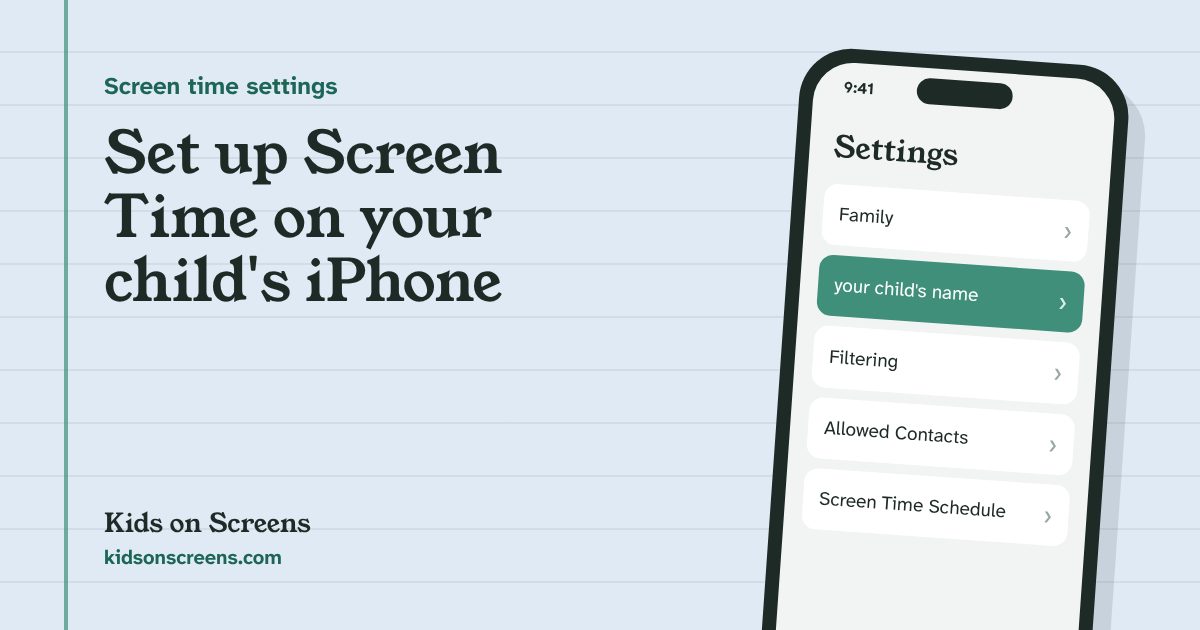
To set up Screen Time on your child’s iPhone in iOS 27, open Settings > Family > your child’s name on your own iPhone and follow the new parental controls setup. After Get Started, it walks you through six screens: content, communication, available hours, school hours, time allowances and a four-digit passcode. You need Family Sharing, a Child Account for your child, and every family device updated to version 27.
iOS 27 changed Screen Time a lot. Most guides you’ll find still describe Downtime and App Limits, which no longer exist under those names. This guide follows Apple’s current help pages, linked in each step. We have not tested these steps on a device ourselves, so if a screen looks different on yours, follow the onscreen wording and Apple’s linked page.
Before you start
- A new iPhone for Christmas? Set it up before you wrap it: see our first phone Christmas setup checklist.
- Family Sharing. You need a Family Sharing group, and your child needs their own Apple Account that nobody else uses (Apple Support).
- A Child Account. Apple says a Child Account is required for children under 13 and available up to 18. Age limits can vary by country or region (Apple: Set up an iPhone or iPad for your kid).
- Update every device. The new controls need version 27 of iOS, iPadOS, macOS, watchOS or visionOS on all devices in the family. If one device can’t update, you can keep using the previous Screen Time, documented for iOS 26 (Apple Support). Child with an Apple Watch but no iPhone? See our Apple Watch for kids guide.
- Ten quiet minutes with your child. Some steps, like managing contacts, need your child to accept a request on their phone.
Step 1: Set up a new iPhone as a child’s device
If the iPhone is new or freshly erased, you can create the Child Account during setup:
- Turn on the iPhone and choose the country or region and language.
- On the Quick Start screen, hold your own iPhone close to it, or choose Set up Without Another Device.
- When asked who will use the device, choose your child, or Create New Child Account if they aren’t in your family yet.
- Follow the onscreen steps.
Quick Start needs iOS 16 or later on your iPhone and Bluetooth turned on. If you’re handing down an old phone, back it up, sign out of your Apple Account and erase your data first (Apple).
If your child already has an iPhone and a Child Account, add them to your Family Sharing group first, then go on to step 2.
Step 2: Start the parental controls setup
After the update to version 27, your iPhone invites you to set up parental controls for each child. Tap Get Started. To do it later, open:
The setup has seven steps, starting with Get Started. Steps 3 to 7 below cover what each one asks. You can review settings you made in older versions and change them as you go (Apple: Set up parental controls for version 27).
Step 3: Choose content and website access
On the content screen you choose:
- Websites in Safari: Approved Websites Only, Ask to Browse, Limit Adult Websites, or unrestricted.
- Age ratings for books, movies, TV shows and music in Apple’s apps, including blocking explicit content.
Apple turns on stricter web settings by default for younger children, and Limit Adult Websites is on by default for children under 18. To change these later:
The same Restrictions screen holds the app age rating and options for installing and deleting apps, purchases and Game Center. To block or allow one specific app or website, tap Apps & Websites > Add. Blocked apps are hidden until you allow them again (Apple: Block or allow access to apps and websites).
Step 4: Choose who your child can talk to
The communication screen lets you require approval before your child talks to someone new in Phone, Messages and FaceTime, and turns on protection for photos and videos that may contain nudity (Apple).
To manage contacts afterwards:
- Turn on Manage [child’s name] Contacts to see and edit their contacts. Your child has to accept this request on their device.
- Turn off Allow Contact Editing so your child sends you a request before adding someone new.
- Use During Screen Time and When Device Paused or Unavailable to choose who can reach them at each time.
This only works when Contacts is turned on in iCloud on your child’s iPhone (Apple: Choose who your child can communicate with).
Step 5: Set available hours and school hours
Available hours replace the old Downtime. You set an Available From and Available Until time, with separate times for weekdays and weekends. Outside those hours, most apps and notifications pause.
On the next screen, turn on Pause During School Hours and set a start and end time. During school hours, apps in Entertainment, Games and Social Media pause, while other apps stay available (Apple).
For more detail later, use the full schedule:
Turn on Schedule, tap Add Schedule and pick the days. You can add time windows (Apple’s built-in ones are Before School, School and After School) and choose which app categories are allowed in each. A custom schedule is handy for shortened school days (Apple: Set up Screen Time Schedules and Time Allowances).
Step 6: Set time allowances
Time Allowances are the new name for App Limits. You set a total daily time across Entertainment, Games and Social Media, then adjust each category. The slider shows a suggested range based on your child’s age.
To change them later:
- Turn on Match Screen Time Schedule to tie allowances to your schedule.
- Drag a category’s slider, or use the plus and minus buttons, to change its time.
- Use Additional Time Allowances for apps that don’t belong to a category.
Contacts and apps you set as Always Allowed stay available whatever the schedule or allowance (Apple). Good candidates are Phone, Messages with family, and a maps app.
Step 7: Create the Screen Time passcode
The last screen asks for a four-digit passcode. You’ll need it to change parental controls, so pick one your child can’t guess: no birthdays, phone numbers or 1234. Then follow the prompts to set up passcode recovery with your Apple Account, so you can reset it if you forget it.
To change it later:
The same screen shows when the passcode was last used (Apple: Set, change and manage a Screen Time passcode).
How requests for more time and new apps work
When your child hits a limit, wants an app, or wants a new website, they can send you a request. It arrives in Messages on your device:
- More time: choose Approve for 15 minutes, Approve for 1 hour, or Approve all day, or tap Not Now.
- Apps and purchases: tap Approve or Decline. Approved apps can be put in a Time Allowance category.
- In person: your child taps Approve on Device, and you enter the Screen Time passcode.
To let another adult answer requests, open Settings > your name > Family > the adult’s name and turn on Set as Parent/Guardian (Apple: Approve your child’s purchases, downloads and requests).
What Screen Time can’t do
- It needs every device on version 27. If one family device can’t update, the new controls don’t sync and you stay on the older Screen Time.
- Website filtering is documented for Safari only. Apple’s page doesn’t say how other browsers are handled.
- Allowed Contacts covers Phone, FaceTime and Messages, using iCloud contacts. Apple’s page doesn’t mention third-party chat apps, so check each app’s own settings.
- Age ratings for content apply to Apple’s apps, such as Books, Music and Apple TV, not to everything inside other apps.
- Adult website detection is automatic, so it limits access but can’t promise to catch every site.
- It doesn’t replace the conversation. Limits work better when your child knows the rules and why. A written agreement helps: see our family phone contract.
Suggested starting points by age
These are starting points to discuss, not rules. Apple’s own suggested ranges appear on the Time Allowances slider.
| Age | Content and web | Contacts | Schedule |
|---|---|---|---|
| Under 9 | Approved Websites Only; strict age ratings | Manage contacts; approve every new one | Short available hours; school hours paused |
| 9 to 12 | Ask to Browse or Limit Adult Websites | Approval for new contacts | School hours paused; device off an hour before bed |
| 13 to 17 | Limit Adult Websites | Talk about it; Apple turns contact approval on by default only up to 13 | Agree the evening cut-off together |
The American Academy of Pediatrics suggests building a family media plan with screen-free zones such as the dinner table and before bed (HealthyChildren.org). When the phone is off, our screen-free activity cards give kids something to do. Our free daily routine chart puts the agreed screen time on the same page as the day’s jobs.
Using Android too? See how to set up Google Family Link. Setting up an iPad, or sharing yours with the kids? See iPad parental controls.
Questions parents ask
Can I set up Screen Time from my own iPhone instead of my child's?
Yes. With Family Sharing, you manage everything from Settings > Family > your child's name on your own iPhone, iPad or Mac. Your child's device follows the settings once all family devices run version 27.
What happened to Downtime and App Limits?
In iOS 27, Downtime became part of the daily schedule (the Available hours), and App Limits were renamed Time Allowances. If a family device can't update, you can keep using the previous Screen Time, which Apple still documents for iOS 26.
How does my child ask for more time?
When a limit runs out, your child can send a request. It arrives in Messages on your device, where you can approve 15 minutes, 1 hour or all day, or tap Not Now. You can also approve in person on their device with the Screen Time passcode.
Does Screen Time work in browsers other than Safari?
Apple's help pages describe website filtering in Safari only and don't say how other browsers are handled. If you rely on website filtering, block other browser apps or check that they respect your settings.
What if I forget the Screen Time passcode?
When you create the passcode, follow the prompts to set up passcode recovery with your Apple Account. Apple says that recovery is what lets you reset the passcode if you forget it.
Setting up other devices too? See parental controls for every device.