PS5 Parental Controls: Play Time, Spending and Chat, Step by Step
Set up PS5 parental controls: create a child account, set play time and bedtime hours, block chat and spending, and change the 0000 console passcode.
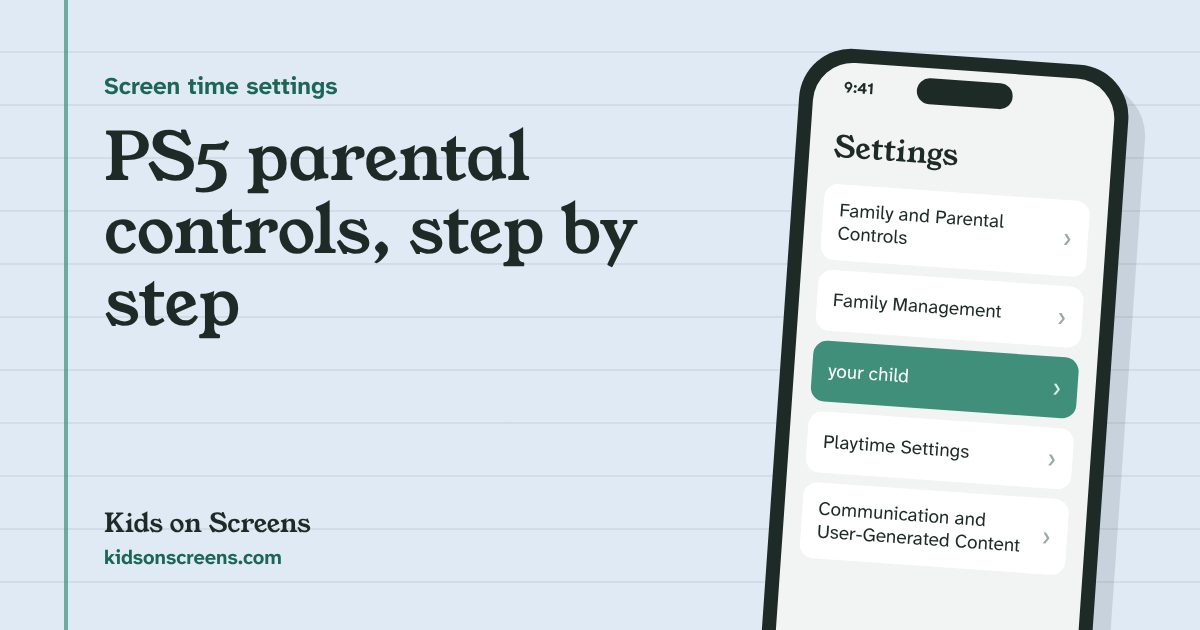
To set up PS5 parental controls, create a PlayStation family with yourself as the family manager and a child account for each child, then open Settings > Family and Parental Controls > Family Management on the PS5 (or the free PlayStation Family app) and choose your child. There you pick a restriction level, set daily play time and playable hours, restrict chat, and keep the monthly spending limit at zero. Finally, change the console restriction passcode from its default of 0000 so your child can’t undo it all.
Everything below follows PlayStation’s own support pages, linked in each step. We have not tested these steps on a console ourselves, so if a screen looks different, follow the onscreen wording and PlayStation’s linked page.
Before you start
- Your own PlayStation account. You’ll be the family manager. Each family has only one, and only the family manager can add a child (PlayStation: Family accounts).
- A child account per child. Controls are set per child and follow the account, not the console, so siblings can have different rules. Child members can’t be removed from a family later, so set it up with the right adult as manager.
- The PlayStation Family app (optional but handy). It’s free on iOS 14 or later and Android 8 or later, and is the easiest way to answer your child’s requests for more time (PlayStation Family app).
- Your child’s email verified. PlayStation says controls may not work until your child completes email verification and signs in on the console (PlayStation: Parental controls).
Step 1: Create a family and add your child
You can start in the app, on the web or on the PS5 (PlayStation: Family accounts):
- App: sign in to PlayStation Family and select Set Up Your Family. For another child: Settings > Family Management > Add a child.
- Web: sign in to Account Management, select Family Management, then Set Up Now > Add a Child.
- PS5: sign in as yourself, then select Profile icon > Switch User > Add User > Get Started > Create an Account.
Follow the prompts with your child’s real name and date of birth; PlayStation uses the date of birth to limit games to those rated at or below your child’s age (PlayStation). The minimum age for a child account varies by country.
To share the job with another parent, invite them under Family Management > Add Family Member, then select them and turn on Parent/Guardian. Appointed parents and guardians can change parental controls too.
Step 2: Choose a restriction level
On the PS5, signed in as yourself:
Under Restriction Level, PlayStation offers three presets (PlayStation: Parental controls):
| Setting | Child | Early Teens | Late Teens or Older |
|---|---|---|---|
| PS5 games and apps | Rated at or below your child’s age | Same | Same |
| PS4 games and apps | Rated 6-7 and under (varies by region) | Rated 12-13 and under | Rated 15 and under |
| Web browsing | Restricted | Restricted | Not restricted |
| PS VR2 and PS VR | Restricted | Not restricted | Not restricted |
| Communication and user-generated content | Restricted | Restricted | Restricted |
| Monthly spending limit | 0 | 0 | 0 |
Change any single item and the level switches to Customize. Note that PS5 games are checked against your child’s actual age from their date of birth, so the preset matters most for PS4 games, discs, the browser and VR. PlayStation says PS VR2 and PS VR are not for children under 12.
If your child tries to start a blocked game, the PS5 stops it and lets them send a request. You get a notification and an email, and can approve it under Allowed Games or in the app’s Game Requests.
Step 3: Set daily play time and playable hours
On the PS5:
- Set your child’s Time Zone first. PlayStation won’t let you adjust play time without it.
- Under Restrict Playtime, select Restrict.
- Set a Duration (how long a day) and Playable Hours (the window when play is allowed, for example 4 pm to 8 pm). You can use the same settings every day or different ones for each day of the week.
- Select Save (PlayStation: Play time controls).
In the PlayStation Family app, the same settings sit in the Playtime widget on the home screen (PlayStation: Family app guide). Play time limits follow the account, so they also apply if your child plays on a PS4.
Step 4: Decide what happens when time is up
Still in Playtime Settings, choose When Playtime Ends:
- Notify Only. A message appears, but your child can keep playing. This suits older kids learning to stop on their own.
- Log Out. Your child is signed out when time runs out.
Reminders appear at the top of the screen before time ends. From a reminder, your child can select Ask for More Playtime. You get a notification and choose Change Playtime to give extra time for today, or Decline. You can also add time yourself in the app or on the PS5 (PlayStation: Play time controls).
A tip that avoids arguments: agree beforehand what Log Out means for an unsaved game or an online match that can’t be paused, and when it’s fine to ask for ten more minutes.
Step 5: Restrict chat and other players’ content
Selecting Restrict turns off text messages and voice chat with other players (pre-written in-game messages still work), stops your child sharing what they create, hides other players’ user-generated content, and blocks linking some third-party apps with chat features (PlayStation: Parental controls). You can also block screenshots and video clips, gameplay broadcasts and other players’ profile descriptions.
All three presets restrict communication. If your child wants to chat in one game with friends, they can send a request, and you can allow communication for that game only. In the app, also look at Privacy Settings: who can send friend requests, message or follow your child, and who sees their online status (PlayStation: Family app guide).
Step 6: Keep spending at zero, or set a monthly limit
The default is 0, which blocks purchases. Your child’s purchases come out of the family manager’s wallet, so if you raise the limit, set a monthly amount you’re comfortable with. On the web it’s Account Management > Family Management > your child > Edit > Monthly Spending Limit (PlayStation: Parental controls). The app’s Monthly Spending Limit widget shows the wallet balance too.
Step 7: Change the 0000 passcode and close the loopholes
PlayStation lists three ways to stop a child changing the controls (PlayStation: Prevent changes):
- Change the console restriction passcode. Enter the current one (it’s 0000 if never set), select Change Your Console Restriction Passcode and enter a new four-digit code twice. If you forget it, the console must be reset.
- Turn off new users and guests. In the same menu, set User Creation and Guest Login to Not Allowed, so your child can’t start a fresh, unrestricted profile.
- Lock your own profile. Under Settings > Users and Accounts > Login Settings > Set a PS5 Login Passcode, set a passcode on your account, so your child can’t simply play as you.
What PS5 parental controls can’t do
- They only cover your child’s account. Played on your profile, a guest profile or a friend’s account, none of the limits apply. That’s why Step 7 matters.
- Changes may wait for a sign-out. PlayStation says changes made during play take effect after your child signs out and back in.
- Log Out doesn’t save the game for them. PlayStation’s page doesn’t say what happens to unsaved progress, so agree on saving before time runs out.
- Other apps have their own rules. Phone apps like Discord aren’t covered at all, and some games have their own accounts and chat settings. Check those too, for example with our Roblox parental controls guide.
- Age filtering for online content isn’t available everywhere. PlayStation notes it depends on country or region.
- The console can’t judge a game for you. Ratings are a start; requests let your child ask, and you decide.
Suggested starting points by age
These are starting points to discuss, not rules.
| Age | Restriction level | Play time | Communication |
|---|---|---|---|
| Under 8 | Child | Short daily duration, playable hours, Log Out | Restricted |
| 8 to 12 | Child or Early Teens | Duration plus playable hours; Log Out or Notify Only | Restricted, allow one game on request |
| 13 to 17 | Early Teens or Late Teens | Agree the limits together; Notify Only | Allow per game; review privacy settings together |
The American Academy of Pediatrics suggests a family media plan with screen-free zones such as the dinner table and before bed (HealthyChildren.org). For the time after the console goes off, try our screen-free activity cards or a chore chart by age. Playable hours do the enforcing; our free family phone agreement and daily routine chart help agree the rules first.
Got a Switch or an Xbox too? See our Nintendo Switch parental controls guide and Xbox parental controls guide. Setting up a phone or tablet? See iPhone, iPad and Android with Family Link.
Questions parents ask
Are PS5 parental controls free?
Yes. The controls on the PS5, on the Account Management website and in the PlayStation Family app for iPhone and Android all come at no cost. You need a PlayStation account for yourself and a child account for each child.
What is the default PS5 parental control passcode?
PlayStation says the console restriction passcode is 0000 if you have never set one. Change it under Settings > Family and Parental Controls > PS5 Console Restrictions. If you forget the new one, you have to reset the console.
Can I give my child a different play time limit from their sibling?
Yes. Play time and parental controls are set for each child account, not for the whole console. They also follow the account, so the same limits apply if your child plays on a PS4 or another PS5.
What happens when PS5 play time runs out?
You choose: Notify Only shows a message and lets play continue, while Log Out signs your child out. Before time ends your child sees reminders and can tap Ask for More Playtime; you then approve with Change Playtime or decline, on the console or in the PlayStation Family app.
Do PS5 parental controls work if my child uses my account?
No. The controls are attached to your child's account. If they play while signed in as you, or as a new user or guest, none of their limits apply. Set a login passcode on your own account and turn off User Creation and Guest Login.
Setting up other devices too? See parental controls for every device.