iPad Parental Controls: Screen Time, Guided Access and Shared iPads
iPad parental controls in iPadOS 27: set up your child's own iPad, lock a shared iPad to one app with Guided Access, and protect settings with a passcode.
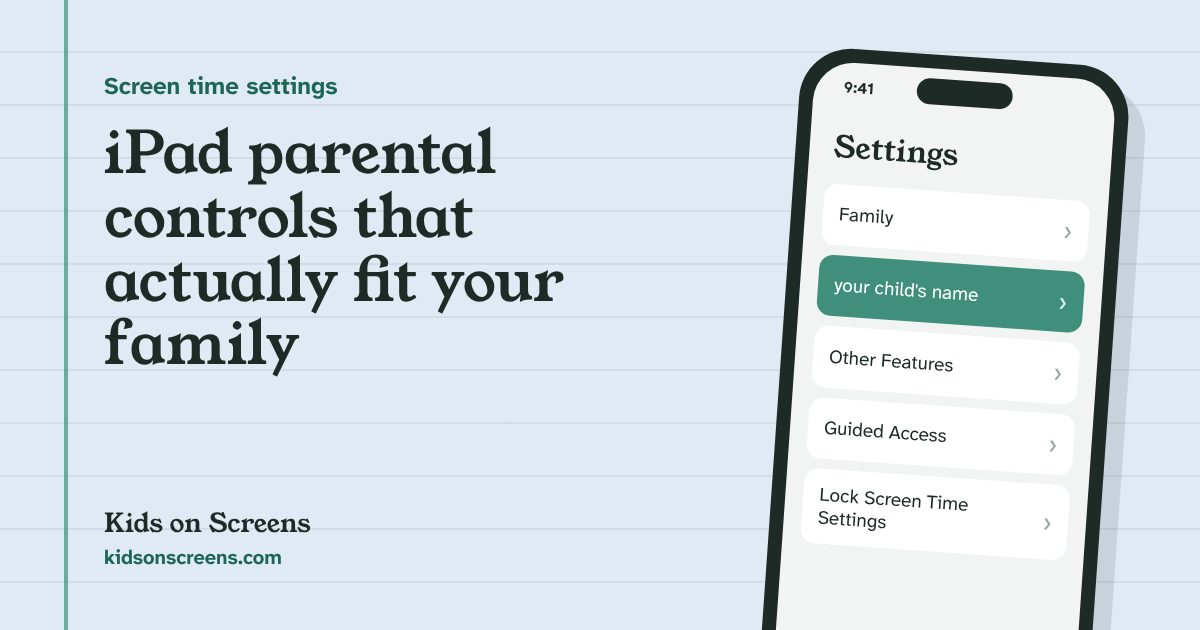
iPad parental controls depend on one question: does your child have their own iPad, or do they use yours? If the iPad is theirs, give them a Child Account in Family Sharing and set Screen Time from your iPhone under Settings > Family > your child’s name, the same way as on an iPhone in iPadOS 27. If they borrow your iPad, use Guided Access to lock it to one app, and put a passcode on your own Screen Time settings. A home iPad can’t hold separate child and parent profiles, so those are the two real options.
Most iPad guides online were written for iPadOS 12 to 17 and still talk about Downtime and App Limits, which iPadOS 27 renamed. This guide covers what is specific to the iPad and links to our step-by-step iPhone Screen Time guide for the full Screen Time screens, which Apple documents for iPhone and iPad together. Every step comes from Apple’s help pages, linked below. We have not tested these steps on a device ourselves, so if a screen looks different, follow the onscreen wording and Apple’s page.
Before you start
- Know which iPad you’re setting up. A child’s own iPad, a hand-me-down, or your iPad that the kids borrow. The steps differ.
- Check the software version. The new parental controls need version 27 of iPadOS, iOS and macOS on every device in the family. Devices that can’t update keep the previous Screen Time (Apple Support).
- Family Sharing and a Child Account are needed for full controls on a child’s iPad. Apple says a Child Account is required under 13 and available up to 18; age limits vary by country or region (Apple).
- Choose two passcodes your child can’t guess: one for Guided Access, one for Screen Time. Neither should be your iPad’s unlock code.
Step 1: Decide: their own iPad or yours
There are no family profiles on a home iPad. Apple’s Shared iPad, which lets several people sign in, “requires a device management service and Managed Apple Accounts that an organization issues and owns”, so it’s built for schools and businesses, not families (Apple Platform Deployment).
That leaves two set-ups:
- Their own iPad, signed in with their Child Account. All parental controls work: schedules, time allowances, content limits, contacts and requests for more time. Go to step 2.
- Your iPad, signed in with your Apple Account. Screen Time limits you set here apply to you too, and your apps, photos and messages are one swipe away. Guided Access is the best tool: go to step 4.
A hand-me-down iPad counts as their own. Before you pass it on, Apple says to back it up, sign out of your Apple Account and erase it (Apple).
Step 2: Set up the iPad with your child’s account
On a new or erased iPad:
- Turn it on and choose the country or region and language.
- On the Quick Start screen, hold your iPhone close, or choose Set up Without Another Device.
- When asked who will use the device, pick your child, or Create New Child Account.
- Follow the onscreen steps.
Quick Start needs iOS 16 or later on your iPhone and Bluetooth turned on (Apple: Set up an iPhone or iPad for your kid).
Step 3: Set Screen Time for their iPad from your iPhone
You don’t need to hold the child’s iPad to set limits. On your own iPhone or iPad, open:
The iPadOS 27 setup walks through content and websites, communication, available hours, school hours, time allowances and a four-digit passcode (Apple: Set up parental controls). Each screen is explained in our iPhone Screen Time guide, and it works the same way for the iPad.
Two settings are worth a look on an iPad that’s often used for video and drawing apps:
Here you can block built-in apps and features such as AirDrop and Camera. A blocked app is hidden from the Home Screen, not deleted. Under Allow Changes to Settings in the same menu, you can stop changes to things like Face ID & Passcode, Location Services, Accounts and Photos (Apple: Block or allow access and changes to features).
If your child’s iPad is managed through Family Sharing, the Screen Time passcode is set on your device under Settings > Family > your child’s name > Passcode & Management > Lock Screen Time Settings. You get a notification when the passcode is used on the child’s device (Apple: How to set a Screen Time passcode).
Step 4: Lock your iPad to one app with Guided Access
Guided Access is separate from Screen Time: it lives under Accessibility, has its own passcode, and works for one session rather than a whole day. It keeps the iPad in a single app until you unlock it. It’s made for the moment you hand your iPad to a young child for one game, a video call or a drawing app.
Turn it on once:
Turn on Guided Access, then open Passcode Settings to set a Guided Access passcode and choose whether Face ID or Touch ID can end a session. Time Limits sets whether a sound plays or the remaining time is spoken before a timed session ends.
Each time you hand the iPad over:
- Open the app.
- Triple-click the top button (or the Home button on iPads that have one). If a shortcuts menu appears, tap Guided Access.
- Circle any part of the screen you want to disable, such as an in-app shop button or an ad banner.
- Tap Options to block the top button, volume buttons, motion, the keyboard or all touch, or to set a Time Limit.
- Tap Start.
To end, triple-click the top or Home button (double-click on iPadOS 18 and earlier), enter the passcode (or use Face ID or Touch ID), and tap End. When a time limit runs out, the screen shows a message and stays in the app until you unlock it (Apple: Use Guided Access).
Step 5: Put a passcode on your own Screen Time
If your child uses your iPad outside Guided Access, lock the Screen Time settings on it so limits can’t be switched off. In iPadOS 27:
Enter a four-digit passcode twice, then add Screen Time Passcode Recovery with your Apple Account. Apple warns that without the recovery account you can’t remove or reset the passcode, and Apple may not be able to help (Apple: How to set a Screen Time passcode).
Your own Screen Time also has schedules, time allowances and content restrictions, but they apply to everyone using the iPad, you included (Apple: Set up Screen Time for yourself on iPad). For a child who uses the iPad a lot, their own Child Account is cleaner.
Step 6: Check Screen Distance
On iPads with Face ID (the TrueDepth camera), Screen Distance notices when the iPad is held closer than 12 inches for a long time and covers the screen with an alert until it’s moved back. It’s on by default for children under 13 in Family Sharing, and switches back on whenever the child updates a device. To turn it on for yourself, for example on an iPad your child borrows:
It needs iPadOS 17 or later (Apple: What is Screen Distance?).
If your iPad can’t update to iPadOS 27
Families often hand down older iPads. If one family device can’t run version 27, it keeps the previous Screen Time with Downtime and App Limits, and the new controls don’t sync across the family. Apple keeps the iOS 26 instructions for that case, linked from its Screen Time page. Guided Access works on older iPads too; only the end-session gesture differs.
What iPad parental controls can’t do
- No separate child profile on a family iPad. Shared iPad needs an organization’s device management and accounts.
- Screen Time on your own iPad limits you too. It can’t tell whether you or your child is holding it.
- Guided Access isn’t a time limit for a whole day. It locks one session in one app. Apple also notes that emergency services and Crash Detection aren’t available during a session.
- Website filtering is documented for Safari only in Apple’s help pages, so check other browsers you install.
- Content age ratings cover Apple’s own apps such as Books, Music and Apple TV, not everything inside other apps.
- It doesn’t replace the agreement. Kids follow limits better when they helped set them. Our free family phone contract works for tablets too.
Which set-up fits which age
These are starting points to discuss, not rules.
| Age | Typical iPad use | Best fit |
|---|---|---|
| Under 5 | Your iPad, short sessions with you nearby | Guided Access with a time limit |
| 5 to 8 | Your iPad, or a hand-me-down at home | Guided Access on yours, or their own Child Account |
| 9 to 12 | Their own iPad for school and play | Child Account; school hours paused; passcode on your device |
| 13 to 17 | Their own iPad | Child Account; limits agreed together |
Playing Roblox on the iPad? Screen Time limits the whole app, and Roblox has its own chat and spending settings: see Roblox parental controls. For a games console, see Nintendo Switch or PS5 parental controls.
The American Academy of Pediatrics suggests a family media plan with screen-free zones such as the dinner table and before bed (HealthyChildren.org). For the time the iPad is off, our screen-free activity cards give kids something to pick.
Kids on Android too? See how to set up Google Family Link.
Questions parents ask
Is Guided Access separate from Screen Time on iPad?
Yes. Guided Access is an Accessibility setting (Settings > Accessibility > Guided Access) with its own passcode, and it locks the iPad to one app for one session. Screen Time is a separate setting with its own passcode for daily limits, content and app restrictions. You can use both on the same iPad; use two different passcodes, neither of them your iPad's unlock code.
Can I make a separate child profile on our family iPad?
Not on a home iPad. An iPad signs in with one Apple Account. Apple's Shared iPad, which supports several users, needs a device management service and Managed Apple Accounts that an organization owns, so it's meant for schools and businesses. At home, either give your child their own iPad with a Child Account or use Guided Access on yours.
How do I stop my toddler leaving the app on my iPad?
Use Guided Access. Turn it on in Settings > Accessibility > Guided Access, open the app, triple-click the top button (or the Home button), and tap Start. Your child can't leave the app until you triple-click and enter your Guided Access passcode, Face ID or Touch ID.
Do I set up my child's iPad on the iPad itself or on my iPhone?
With Family Sharing and a Child Account, you manage everything from Settings > Family > your child's name on your own iPhone, iPad or Mac. Apple says the Screen Time passcode for a family-managed child is set on the parent's device, not the child's.
Our iPad is too old for iPadOS 27. Do parental controls still work?
Yes. Apple says devices that can't update can keep using the previous version of Screen Time and parental controls. The new version 27 controls need every device in the family on version 27 to sync.
What is Screen Distance on iPad?
On iPads with Face ID, Screen Distance covers the screen with an alert when the iPad is held closer than 12 inches for a long time, until it's moved back. Apple turns it on by default for children under 13 in a Family Sharing group.
Setting up other devices too? See parental controls for every device.