Roblox Parental Controls: Every Setting Explained (2026)
Roblox parental controls for 2026: Kids and Select accounts, linking a parent account, chat, content maturity, screen time, spending limits and Trusted Friends.
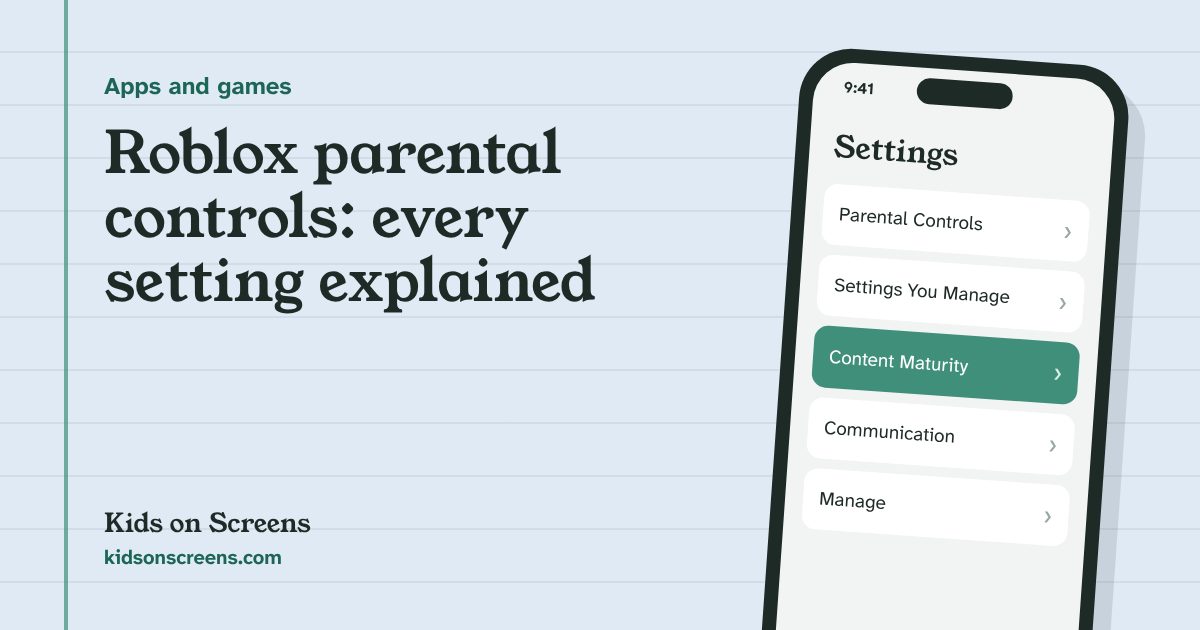
To set Roblox parental controls, open Settings > Parental Controls on your child’s Roblox account and enter your email to start linking a parent account. You create the parent account on your own device and verify your age with your ID. From then on you can change your child’s chat, content maturity, screen time and spending limits remotely, under Parental Controls > Settings You Manage.
Roblox changed a lot in 2026. Since June, children get Roblox Kids or Roblox Select accounts depending on their age, and chat needs an age check. Most guides you’ll find were written before that. This one follows Roblox’s own help pages and announcements, linked in each step. We have not tested these steps on a device ourselves, so if a screen looks different, follow the onscreen wording and Roblox’s linked page.
Before you start: Kids, Select or Roblox?
Since June 16, 2026, Roblox places players in one of three account types (Roblox Newsroom):
| Age (age-checked) | Account | Chat by default | What parents can change |
|---|---|---|---|
| 5 to 8 | Roblox Kids | Off | Allow in-game text chat with similar-age users or Trusted Friends |
| 9 to 15 | Roblox Select | Unlocks gradually | Chat settings and allowed or blocked games until 16 |
| 16 and up | Roblox | On | Less direct control; still see spending, screen time and friends |
Two things follow from this:
- Chat needs an age check. Every user has to pass an age check, by ID or Facial Age Estimation, to chat. Children who don’t are placed in Kids or Select by the age they typed in, and can’t chat at all.
- Some controls stop at 13. Until 13, parents can check the friend list, approve Trusted Friends, and set screen time and spending limits. Until 16, parents can change chat settings and allow or block specific games.
Step 1: Create your parent account and link it
Start on your child’s device (Roblox: How to set up a parent account):
- Open Roblox on your child’s account and go to Settings > Parental Controls.
- Enter your email address to start linking.
- On your own phone or computer, create your Roblox account and enter your birthday.
- Verify your age with a photo of your ID, and confirm your face matches it. Roblox’s parental controls page also mentions a credit card as a way to verify a parent account (Roblox Parental Controls).
- Link your account to your child’s.
Now you can manage most settings remotely from your own device,.
Step 2: Set content maturity
Move the slider to choose the most mature level your child can play: Minimal, Mild or Moderate. Roblox describes Minimal as games that may contain “occasional mild violence, light unrealistic blood, and/or occasional mild fear” (Roblox Help: Parental Controls Overview).
Restricted games are only for users verified as 17 or older (Roblox Help), and Roblox Select accounts can’t be given access to them. Games in the Kids and Select catalogues get extra review, and games built around social hangouts, free-form drawing or sensitive topics aren’t allowed there (Roblox Newsroom).
Step 3: Choose who your child can chat with
- Experience Chat: chat inside games, set to Everyone or No one.
- Experience direct chat: private messages in games (the “/w” command). It’s off for under-13s unless you allow it.
- Party: who can join your child in one-on-one or group parties. The default is Friends; setting it to No one turns off both.
- Voice chat: off for under-13s. You can allow voice chat with Trusted Friends for ages 9 to 12; for 13 to 15 it’s on with Trusted Friends by default, and you can turn it off (Roblox Parental Controls).
Where chat is allowed, Roblox limits it to people in a similar age group or to Trusted Friends. For under-13s, a Trusted Friend can only be added with your approval, which you must give within 24 hours. Talk with your child about who each friend is before you approve.
Roblox notes that these settings don’t cover chat features a game’s developer builds separately (Roblox Help).
Step 4: Set a daily screen time limit
Next to the seven-day average chart, select Manage and set a daily limit. When the limit is reached, your child sees a message and can’t use Roblox for the rest of the day (Roblox Help).
This limit is for children under 13. For teens, Roblox only suggests talking about screen time, so use the device’s own limits instead: Screen Time on iPhone, iPad, Family Link on Android, the Nintendo Switch app or PS5 play time settings all cap the whole app or console.
Step 5: Set a monthly spending limit
- Set a monthly spending limit for Robux and experience subscriptions. It resets at the end of each calendar month and doesn’t roll over.
- Choose spending notifications: all transactions, high-spend alerts only, or none. Without changes, Roblox notifies you after $100, $250 and $500 in a month (Roblox Help).
Only Roblox Plus subscribers can transfer Robux. Younger users need your approval for every transfer they send or receive, and transfers are capped at 500 Robux a day and 1,000 a month (Roblox Parental Controls).
The limit doesn’t affect gift card redemption. If you don’t want extra Robux arriving that way, agree a rule about gift cards with relatives too.
Step 6: Check friends, private servers and games
- Friends: under Parental Controls > Friends you can see your child’s friends, with their usernames and avatars. Select an avatar to open that profile (Roblox Help).
- Private Servers: set to Friends or Off to control who can join your child’s private servers, and whose they can join.
- Specific games: until your child turns 16, you can allow or block individual games (Roblox Newsroom).
What Roblox parental controls can’t do
- They only cover Roblox. A child can still chat with Roblox friends on other apps. Ask where they talk to people they met in games.
- Developer-built chat isn’t covered. Roblox says its chat settings don’t apply to chat features developers build themselves.
- Screen time and spending limits end at 13. After that, use the device’s limits and agree a budget together.
- Gift cards bypass the spending limit.
- An age check is the key to chat. Without one your child can’t chat at all, which is often the simplest setting for young children.
- No setting replaces talking. Roblox monitors chat and filters text, but tell your child they can always show you a message that feels wrong, without losing the game.
Suggested starting points by age
These are starting points to discuss, not rules.
| Age | Content maturity | Chat | Limits |
|---|---|---|---|
| 5 to 8 (Kids) | Minimal | Off | Daily screen time limit; spending limit at $0 or a small amount |
| 9 to 12 (Select) | Mild | Trusted Friends you’ve approved; voice off | Daily limit; monthly spending limit; notifications on |
| 13 to 15 (Select) | Mild or Moderate | Trusted Friends; talk about strangers | Device screen time limits; agree a Robux budget |
The American Academy of Pediatrics suggests a family media plan that you discuss with your kids, with screen-free zones such as the dinner table and before bed (HealthyChildren.org). For the time after Roblox, our screen-free activity cards and daily routine chart help. Our free family phone agreement has space for game rules too.
Questions parents ask
Do I need my own Roblox account to set parental controls?
Yes. Roblox says you need a parent account linked to your child's account to manage parental controls for them. You start the link from parental controls in your child's Roblox settings, then create your account and verify your age.
What are Roblox Kids and Roblox Select?
Since June 2026, age-checked players aged 5 to 8 get Roblox Kids accounts, with chat off by default, and players aged 9 to 15 get Roblox Select, where chat unlocks gradually. Standard Roblox is for age-checked users 16 and older. Ages can vary by region.
Can my child chat on Roblox without an age check?
No. Roblox says every user must complete an age check, by ID or Facial Age Estimation, to use chat. Children who skip it are placed in Kids or Select by the age they entered and can't chat.
How do I stop my child spending money on Robux?
Set a monthly spending limit in parental controls. It covers Robux and experience subscriptions, resets each calendar month and doesn't roll over. It doesn't cover gift card redemption, so a gift card can still add Robux.
Can I limit screen time on Roblox for my 14-year-old?
Roblox's own screen time limits are for children under 13. For teens, use the device's limits instead, such as Screen Time on iPhone or Family Link on Android, which work on the whole Roblox app.
Setting up other devices too? See parental controls for every device.