How to Set Up Google Family Link on Your Child's Android Phone
Set up Google Family Link step by step: create or supervise your child's account, then set daily limits, downtime, school time, app approvals and blocks.
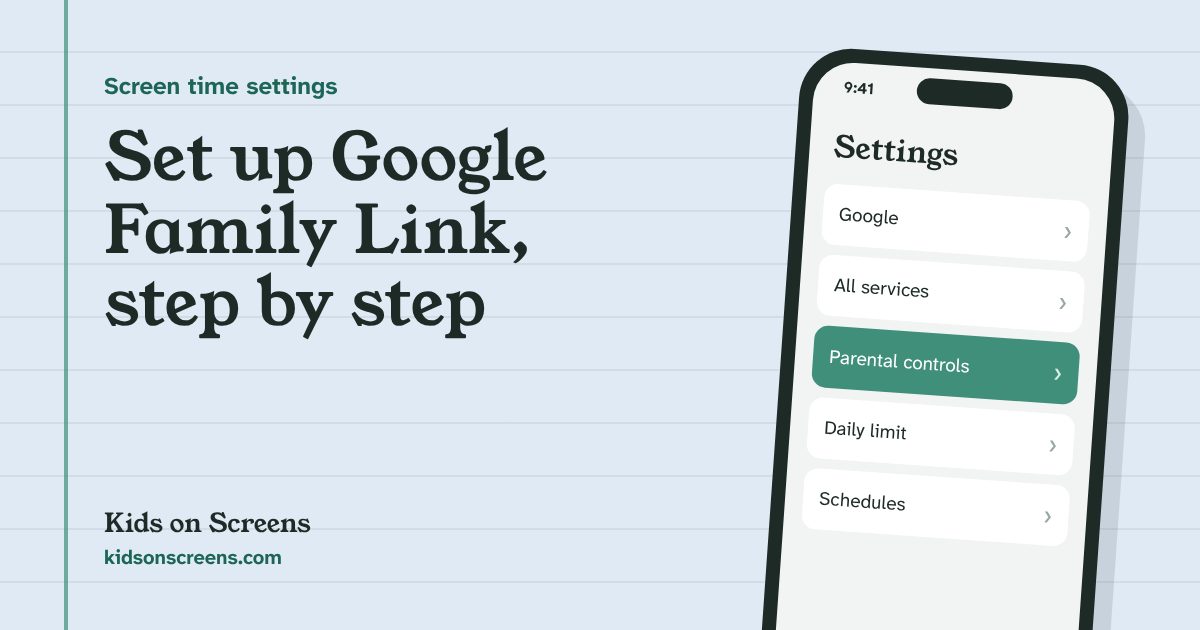
To set up Google Family Link, install the Family Link app on your phone, then either create a Google Account for your child during their Android phone’s setup, or add supervision to the account they already have. After that, you set daily limits, downtime, school time and app approvals from the app on your own phone.
This guide follows Google’s Family Link help pages, linked in each step. We have not tested these steps on a device ourselves, so if a screen looks different on your phone, follow the onscreen wording and Google’s linked page.
Before you start
- You: a Google Account, aged 18 or over (or the age that applies in your country), living in the same country as your child. The Family Link app runs on Android 6.0 or later, and on iPhone or iPad with iOS 16 or later (Google: Get started with Family Link).
- Your child’s device: an Android phone or tablet with Android 6.0 or later, or a Chromebook. App time limits need Android 7 or later (Google).
- Not supported: Family Link can’t supervise iPhones, iPads, or computers other than Chromebooks. For an iPhone, see how to set up Screen Time on your child’s iPhone; for an iPad, see iPad parental controls.
- A new phone as a gift? Our Christmas first phone checklist shows how to set it up before you wrap it.
- Not sure your child is ready? See what age a kid should get a phone: what pediatricians and parent surveys say, and how to start small.
- School accounts (Google Workspace for Education) can’t be managed with Family Link.
- About 15 to 30 minutes, with your child and their phone next to you.
Step 1: Create your child’s account or add supervision
If your child is under 13 and the phone is new or reset:
- Turn on the phone and follow the setup steps.
- When asked to sign in, tap Create account. If you don’t see it, tap More options, then For my child.
- Enter your child’s name, birthday and the email address and password you choose.
- Sign in with your own Google Account, give parental consent and choose your child’s settings.
Google may ask you to confirm consent with a credit card. You aren’t charged, but a temporary authorization may appear and is usually released within 48 hours (Google: Create a Google Account for your child).
You can also create the account from the Family Link app: select your child’s profile at the top left, tap Add child, and follow the steps.
If your child already has a Google Account (often teens): on your child’s phone, open:
Tap Let’s do this and choose the account to supervise. Your child has to agree, and they need to be next to the phone during setup (Google: Add supervision to an existing account).
Step 2: Set a daily limit
In the Family Link app on your phone:
Turn on Daily limit, open Weekly schedule, choose a day and set the time. Use Apply to all days of the week for the same limit every day, then tap Done.
When time runs out, the phone locks: no apps or notifications, except apps you’ve set to Unlimited time. On an Android phone with a calling plan, your child can still answer calls and tap Emergency to make a call (Google: Manage your child’s screen time).
Step 3: Set downtime and school time
- Turn on Downtime for the night, and School time for school hours.
- Tap Weekly schedule under each one, choose the days, set the start and end times, and tap Done.
- For a lunch break during school time, open School time > Weekly schedule, choose a day and tap Break.
- To change just tonight or today, tap Downtime > Tonight or School time > Today.
During school time, calls and texts still come through but their notifications are silenced. During downtime, calls are always available, and texting only works if the messages app is set to Unlimited time. On Android 14 and later, you can also choose who your child can call and text (Google: Set a schedule on your child’s device).
Step 4: Choose which apps are allowed
Tap an app, then choose:
- Blocked (tap the Allowed toggle) to hide it from your child.
- Set limit to give it its own daily time.
- Unlimited time for apps that shouldn’t count toward the daily limit, such as a school app or a maps app. These can also stay available during downtime and school time.
Changes take effect in about five minutes, or when the phone next connects to the internet (Google: Manage your child’s apps).
Step 5: Turn on approvals for downloads and purchases
Choose All content, Paid content only, In-app purchases only, or Never. With All content, your child sends a request for every app, free or paid. Requests appear under Notifications at the top right of the Family Link app (Google: Purchase approvals on Google Play).
Approvals only cover purchases made through Google Play’s billing system. Family Link can also restrict mature content on Google Play (Google).
Step 6: Bonus time and locking the phone
- Bonus time: in Screen time, tap Bonus time under your child’s device to give extra minutes today, without changing the schedule.
- Lock now: tap Lock under the device name in Screen time. If the phone is offline, you can unlock it with your parent access code. Apps set to unlimited time don’t work while the phone is locked this way unless you allow them under Controls > Signed-in devices > Lock screen settings (Google).
To change anything on your child’s phone directly, open Settings > Digital Wellbeing & parental controls (Android 8.1 and later) and sign in as the parent, or enter the parent access code (Google).
What Family Link can’t do
Google lists these limits itself (Google). With Family Link, parents can’t:
- see your child’s screen remotely, or their past searches, Chrome or YouTube history
- read emails or messages, or listen to calls
- check or reset your child’s password
If you want alerts about messages or one dashboard that also covers a computer, see our Qustodio vs Bark comparison for what paid apps add and what they still can’t do.
Also keep in mind:
- Some apps can’t be blocked, because they’re needed for the phone or for supervision to work, and system apps can’t have time limits.
- Daily limits count per device, so set them on each phone, tablet and Chromebook.
- Purchases outside Google Play’s billing aren’t covered by approvals.
- YouTube is set up separately: Family Link can manage a supervised YouTube account, but you choose between YouTube Kids and supervised YouTube yourself (see YouTube Kids vs supervised YouTube).
- Location only works on your child’s Android device or a compatible Fitbit (Google).
- Teens can stop supervision from 13 (or the age in your country), with a parent’s approval while they’re under 18.
Suggested starting points by age
These are starting points to discuss, not rules.
| Age | Apps and Play | Time |
|---|---|---|
| Under 9 | Approval for all content; block browsers and apps you haven’t checked | Short daily limit; downtime from an hour before bed |
| 9 to 12 | Approval for all content | School time on; downtime at night; a few Unlimited time apps for school |
| 13 to 17 | Paid content or in-app purchases only | Agree the limits together and review them each term |
The American Academy of Pediatrics suggests a family media plan that includes screen-free zones such as the dinner table and before bed (HealthyChildren.org). Write the times you set in Family Link into our free family phone agreement, so your child knows the rules as well as the phone does.
Questions parents ask
Is Google Family Link free?
Yes. You need a free Google Account and the Family Link app. When you create an account for a child under 13, Google may place a temporary authorization on a credit card to verify consent, which is usually released within 48 hours.
Can I use Family Link from an iPhone?
Yes, as the parent. The Family Link app runs on iPhone and iPad with iOS 16 or later. But Family Link can't supervise an iPhone or iPad: for a child's iPhone, use Apple's Screen Time.
Can Family Link show me my child's messages or browsing history?
No. Google says parents can't remotely view the screen, see past searches or Chrome or YouTube history, read emails or messages, or listen to calls.
Can my child turn off Family Link?
Once your child reaches 13 (or the age set in your country), supervision can be stopped. Google says a child under 18 needs a parent's approval, and both parent and child are notified when it stops.
Do daily limits add up across devices?
Google's help page says daily limits apply separately to each Android device or Chromebook, so a 2-hour limit means 2 hours on each device. If your child has a phone and a tablet, set limits on both.
Setting up other devices too? See parental controls for every device.