Xbox Parental Controls: Screen Time, Spending and Chat, Step by Step
Set up Xbox parental controls: add your child to a Microsoft family group, set screen time schedules, filter games by age, approve purchases and limit chat.
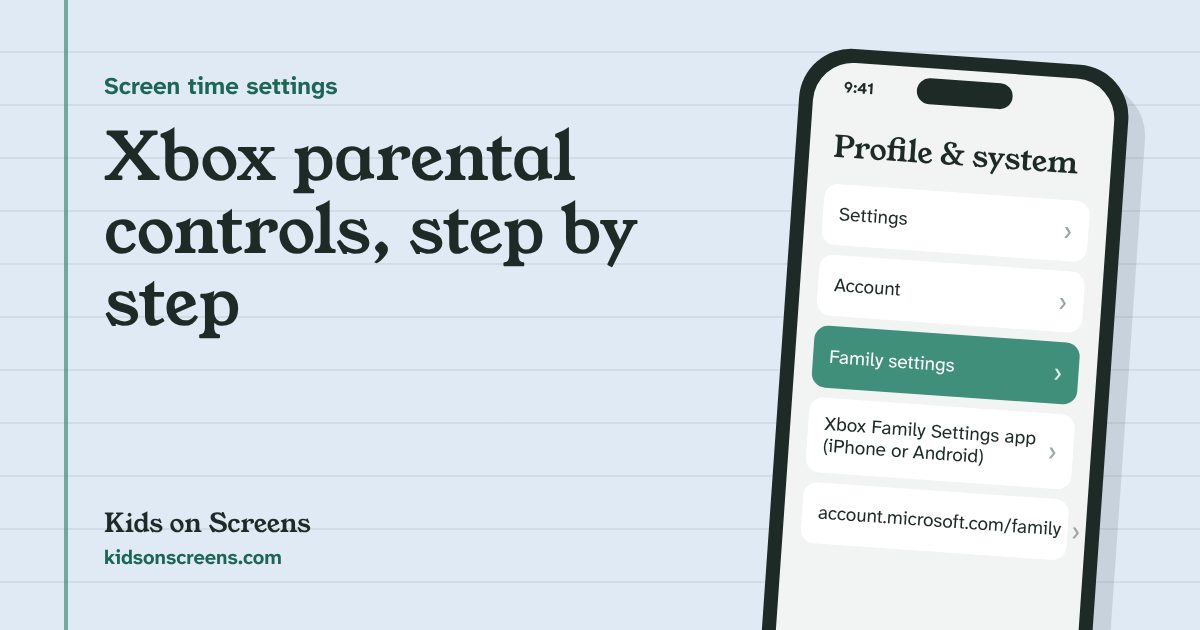
To set up Xbox parental controls, add your child’s Microsoft account to your family group (on the console: Profile & system > Settings > Account > Family settings > Manage family members > Add to family), then manage everything from the free family group, using the Xbox Family Settings app on your phone or account.microsoft.com/family. There you set screen time schedules for each day, filter games, apps and websites by your child’s age, turn on Ask to Buy for purchases, and choose who can chat and play online with your child. The settings only work while your child is signed in to their own account.
Everything below follows Microsoft’s and Xbox’s own pages, linked in each step. We have not tested these steps on a console ourselves, and Xbox Support’s detailed step pages load only with JavaScript, so we could not read them for this guide. Where we give the feature names Xbox publishes instead of an exact menu path, follow the onscreen wording.
Before you start
- Your own Microsoft account. You’ll be an organizer of the family group. Only organizers can add family members (Microsoft Support: Add people to your family group).
- A Microsoft account for your child. You can create one during setup on the console. If your child is under the age of consent where you live, they’ll be asked to get an adult’s consent when they join.
- One family group only. Someone who is already in another family group has to leave it (or be removed) before they can join yours.
- The Xbox Family Settings app (optional but handy). It works on iOS 13 or later and Android 8.0 or later (Xbox Family Settings app).
- Your child signed in as themselves. Xbox says the child must be logged in to the Microsoft account with the Xbox profile used in the family for the settings to apply.
Step 1: Add your child to your family group
On the Xbox, press the Xbox button, select Sign in and sign in as yourself. Then press the Xbox button again and go to (Microsoft Support):
- Child already has a profile on this console: select their profile and press A.
- Child has no account yet: select Add new. When asked to sign in to a Microsoft account, press B, select Get a new account, follow the prompts, then select Add to family.
- Child has an account that isn’t on this console: select Add new, let them sign in, then select Add to family.
On the web, sign in at account.microsoft.com/family, select Add a family member, choose the role Member (Microsoft’s suggestion for a child) and enter their email address or phone number. Your child gets an email and has to accept the invitation; until then it shows as Pending member.
Xbox suggests checking that the account is listed as a child, not an adult, in the app or at account.microsoft.com/family (Xbox Family Hub).
Step 2: Set screen time schedules
Xbox lets you create a screen time schedule for each child, with different time ranges for each day of the week (Xbox Family Settings app). On the family group you can schedule daily time limits and allowed hours on consoles and Windows, and set time limits for specific games or apps; those are shared across consoles and Windows devices (Xbox Family Hub).
Two details worth knowing:
- The countdown starts when your child signs in and stops when they sign out.
- Turn on system notifications on the console so your child gets a warning before time runs out, instead of a sudden stop.
A tip that avoids arguments: agree beforehand what happens to an online match that can’t be paused when time runs out, and when it’s fine to ask for more.
Step 3: Filter games, apps and websites by age
Xbox lets you filter or allow games, apps and websites by your child’s age. When something is blocked, your child can send a request, and you approve or decline it (Xbox Family Hub). You can manage these limits in the Xbox Family Settings app or at account.microsoft.com/family.
If your child plays Minecraft, the app has an Enable Minecraft option: it allows an exception for Minecraft even if your child doesn’t have permission for online multiplayer in other games (Xbox Family Settings app).
Step 4: Choose who can chat and play online with your child
Xbox lets a parent allow or block, for each child, joining multiplayer games, creating or joining clubs, broadcasting gameplay, adding friends and chatting. You also choose who can communicate with your child, who can see what they watch or play, and what profile information others see (Xbox Family Hub). Change these on the console or at account.xbox.com/settings. Xbox says only a parent using the family group can change a child account’s privacy and online safety settings.
In the Xbox Family Settings app you can also see every friend your child follows, remove friends, and set Friend Management so your child has to Ask a parent before adding someone new (Xbox Family Settings app).
Step 5: Turn on Ask to Buy and set an allowance
- Ask to Buy. When your child tries to buy a game, app or in-game item they don’t have the money for, you get a notification in the app and decide (Xbox Family Settings app). Xbox’s family page calls it Ask a Parent and mentions an email (Xbox Family Hub).
- Allowance. Add money to your child’s account from the app, as an allowance or a reward. Your child can then only spend what’s there. You can check their balance at any time.
- Spending history. Review recent purchases of games and in-app items in the app; Microsoft Store orders are also listed online and on the console.
- A passkey on your own account. Xbox says a passkey can limit purchases made on the parent’s account (Xbox Family Hub).
Step 6: Check activity reports and answer requests
The Xbox Family Settings app shows daily and weekly activity reports for each child: how they spend their time and which games they play. Requests for more console screen time or a new friend arrive in the app, and Pause Screen Time temporarily blocks game time: your child sees a message that their screen time is up until you allow play again (Xbox Family Settings app).
What Xbox parental controls can’t do
- They only follow your child’s own account. If your child plays signed in as you or as someone else, their limits don’t apply. Use the passkey on your account, and keep your sign-in to yourself.
- The clock only runs while signed in. Time spent signed out isn’t counted, because the countdown stops at sign-out.
- They don’t cover other apps on other devices. The family group covers Xbox consoles and Windows PCs. Phone apps such as Discord and games with their own accounts have separate settings; see our Roblox parental controls guide, for example.
- Age filters are a starting point. A request from your child is a good moment to look at a game together and decide.
- Spending tools differ. Ask to Buy covers what your child can’t afford; money you add as an allowance can be spent without asking. Check the spending history now and then.
Suggested starting points by age
These are our suggestions to discuss as a family, not rules from Xbox.
| Age | Content | Screen time | Online play and chat |
|---|---|---|---|
| Under 8 | Filter by age | Short daily schedule, warnings on | Blocked; friends need your OK |
| 8 to 12 | Filter by age, approve requests | Schedule per day, more at weekends | Friends only, Ask a parent for new friends |
| 13 to 17 | Filter by age, agree exceptions | Agree the limits together | Review privacy settings together |
The American Academy of Pediatrics suggests a family media plan with screen-free zones such as the dinner table, during homework and before bed (HealthyChildren.org). For the time after the console goes off, our Christmas break bucket list and screen-free activity cards are free to print.
More consoles in the house? See our PS5 parental controls and Nintendo Switch parental controls guides, or all device guides on the parental controls hub. Giving a first phone this Christmas? Start with our first phone setup checklist.
Questions parents ask
Are Xbox parental controls free?
Xbox calls the Microsoft family group, which the controls are built on, a free service. You need a Microsoft account for yourself and one for each child, and each child must be in your family group.
Do Xbox screen time limits work on a Windows PC too?
Yes, if your child signs in with the same Microsoft account. Xbox says time limits for specific games or apps set in the family group are shared across consoles and Windows devices, and activity reports cover both.
Can my child ask for more Xbox time?
Yes. In the Xbox Family Settings app you can review and respond to requests to add console screen time. You can also pause your child's screen time; they then see a message that their screen time is up until you allow play again.
How do I stop my child buying things on Xbox?
Use Ask to Buy: when your child tries to buy a game, app or in-game item they can't pay for, you get a notification in the Xbox Family Settings app (Xbox's overview page also mentions an email) and approve or decline. You can also add money to their account as an allowance, so they can only spend what you gave them.
Setting up other devices too? See parental controls for every device.