Nintendo Switch Parental Controls: Switch 2 and Switch Setup
Set up Nintendo Switch 2 and Switch parental controls: link the free app, set play-time limits and a bedtime, approve GameChat friends and block eShop spending.
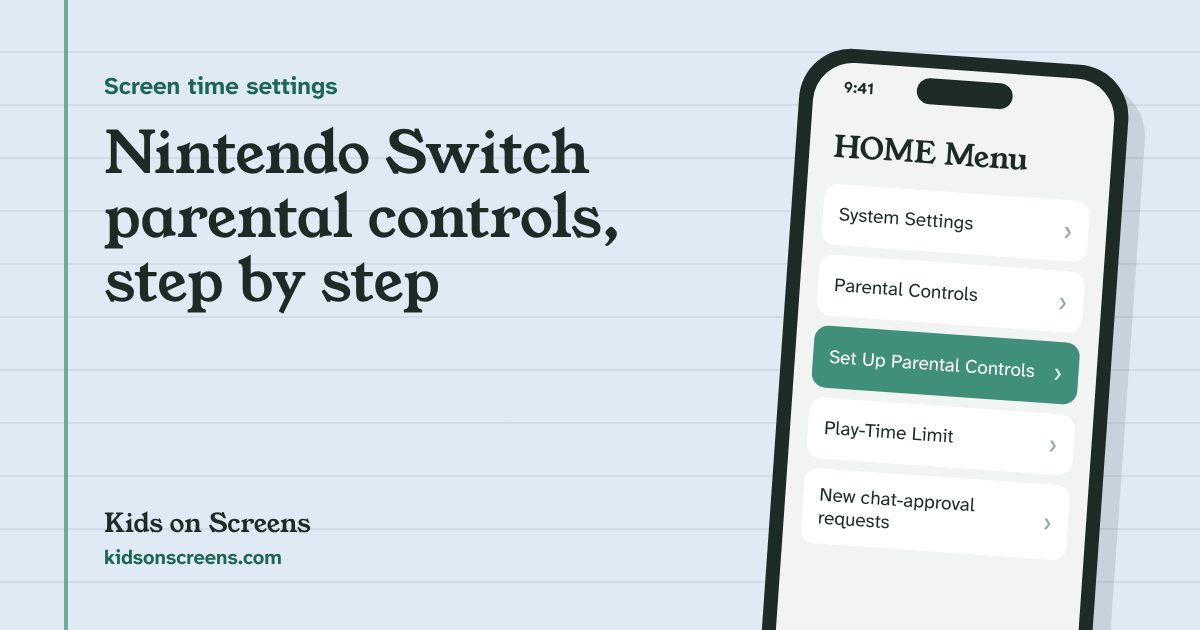
To set up Nintendo Switch parental controls, install the free Nintendo Switch Parental Controls app on your phone, sign in with your Nintendo Account, and link the console with the six-digit Link Code under System Settings > Parental Controls. From the app you then choose a restriction level, set a daily play-time limit and a bedtime, and, on Switch 2, approve who your child can GameChat with. Spending in the eShop is blocked separately, in your Nintendo Account’s family group.
The same steps work on Nintendo Switch 2 and the original Switch, with a few differences noted below. Everything here follows Nintendo’s own support pages, linked in each step. We have not tested these steps on a console ourselves, so if a screen looks different, follow the onscreen wording and Nintendo’s linked page.
Before you start
- Your Nintendo Account. The app needs a Nintendo Account for a user aged 18 or older (Nintendo Support).
- Your phone. The app runs on iOS 16.0 or newer and Android 8.0 or newer, and it’s free. One phone can manage up to eight consoles.
- The console online. Linking and new restrictions need an internet connection; settings take effect once the console connects.
- Think about the youngest player. Nintendo says most settings apply to the whole console, not to each user, so set them for your youngest child. eShop purchases and GameChat are the exceptions.
- Pick a 4- to 8-digit PIN your children can’t guess.
Step 1: Install the app and sign in
- Install Nintendo Switch Parental Controls from the App Store or Google Play.
- Open it, tap Start, read the overview and tap Next.
- Tap Sign In / Create Account and sign in with your Nintendo Account, then tap Select this account and Next.
The app now shows a six-digit Link Code (Nintendo: How to link the console to the app).
Step 2: Link the console with the Link Code
On the console, open:
- Select App Has Been Installed. If you see Change Settings instead, select it, enter your PIN, choose Set up in the (free) Nintendo Switch Parental Controls app, then App Has Been Installed and Next.
- Enter the six-digit Link Code and select OK.
- Select Link, then OK on both the console and your phone.
Up to two parents or guardians in the same Nintendo family group can share control of the app (Nintendo Support).
Step 3: Choose a restriction level
In the app, tap Parental Controls at the bottom right, then Restricted Features. You can also do this on the console under System Settings > Parental Controls. Nintendo’s preset levels are:
| Level | Games blocked (US ratings) | Communication with others |
|---|---|---|
| Child | Everyone 10+, Teen and Mature | Restricted |
| Pre-Teen | Teen and Mature | Restricted |
| Teen | Mature | Not restricted |
Or pick Custom Settings and choose each restriction yourself. Use the Allow List to allow one specific game that the age rating would otherwise block. Tap the red Save button after each change (Nintendo: Set up, adjust or remove parental controls on Switch 2).
Each preset also sets whether VR Mode is allowed.
Step 4: Set a daily play-time limit and bedtime
In the app:
Set the daily limit, with different days if you like, and a bedtime and morning start time so the console can’t be played late at night. Tap Save (Nintendo Support).
Play-time limits, bedtime and the play activity report are only available in the app, not on the console itself.
Step 5: Decide what happens when time is up
Still in Play-Time Limit, choose one of two behaviours:
- Notification only. A message appears on screen, but your child can keep playing. This suits older kids learning to stop on their own.
- Suspend software. The console goes to sleep straight away. Play picks up from the same spot once the limit is lifted or the next day starts.
When a limit is reached you can extend it from the app by 5, 15 or 30 minutes or 1 hour, or turn it off for the day. The app’s Play Activity shows which games were played and for how long, per user when the game supports it (Nintendo Support).
A tip that avoids arguments: agree beforehand that “suspend” means the game stops mid-level, and save often.
Step 6: Set up GameChat approval (Switch 2)
GameChat is Switch 2’s voice and video chat. Nintendo says users under 16 and supervised users need the parental controls app linked, plus extra setup, before they can use it (Nintendo Support).
- Register a phone number to your Nintendo Account first; it’s required for GameChat parental controls.
- When your child asks to chat with a friend, open the request, choose your child, and talk about who the friend is.
- Select Next, approve or decline, add a note if you like, then Finish and OK.
- For video chat, tap the three dots next to your child’s name, then Using Video Chat, and choose whether your child must ask every time or can’t use video at all.
To take back permission later, select the friend and Withdraw GameChat Permission (Nintendo).
Step 7: Block spending in the eShop
Spending isn’t set in the app or on the console, but in your Nintendo Account:
- Tick Spending Restrictions to block purchases and auto-renewal on Switch 2, Switch and the Nintendo Store.
- Tick Restrict under Age-Based Content Restrictions to limit what your child sees in the eShop.
- Select Save changes.
Only a parent or guardian account in a Nintendo family group can set these, and your child’s account needs to be supervised in that group (Nintendo: How to set Nintendo eShop restrictions).
What Switch parental controls can’t do
- Most settings can’t differ by child. They apply to the whole console, so an older sibling gets the youngest child’s rules unless you change them.
- The play-time limit counts the console, not each game. You can’t give one game more time than another.
- Unlinking the app removes the restrictions. Nintendo says all console restrictions are removed when the app is unlinked, which also means a child who unlinks it with the PIN undoes the console restrictions (eShop restrictions set in your Nintendo Account stay on). Keep the PIN private.
- The PIN protects the clock. Changing the date and time needs the PIN, which stops the classic trick of moving the clock back. That only works while the PIN stays secret.
- Spending limits sit in a separate place. Blocking the eShop is done in your Nintendo Account, and it doesn’t cover cards or accounts outside the family group.
- Games’ own online features vary. Communication restrictions block features in games that follow Nintendo’s settings; some games have their own account and chat settings. Check those too, for example with our Roblox parental controls guide.
Suggested starting points by age
These are starting points to discuss, not rules.
| Age | Restriction level | Play-time limit | Communication |
|---|---|---|---|
| Under 8 | Child | Short daily limit, suspend software | Off |
| 8 to 12 | Pre-Teen or Custom | Daily limit plus bedtime; suspend or notify | Off, or GameChat with approved friends |
| 13 to 17 | Teen or Custom | Agree the limit together; notification only | GameChat with approved friends; talk about strangers |
The American Academy of Pediatrics suggests a family media plan with screen-free zones such as the dinner table and before bed (HealthyChildren.org). For the time after the Switch goes off, try our screen-free activity cards or a chore chart by age. The Switch bedtime setting does the enforcing; our free family phone agreement and daily routine chart help agree the rules first.
Got a PlayStation or an Xbox too? See our PS5 parental controls guide and Xbox parental controls guide. Setting up a phone or tablet? See our guides for iPhone, iPad and Android with Family Link.
Questions parents ask
Are Nintendo Switch parental controls free?
Yes. The controls on the console and the Nintendo Switch Parental Controls app for iPhone and Android are both free. You need a Nintendo Account for an adult aged 18 or older to use the app.
Can I set a different play-time limit for each child?
Not for most settings. Nintendo says most parental controls apply to the whole console, so set them for the youngest player. eShop purchases and GameChat can be set per user. The app does show play time per user when the game supports it.
What happens when the play-time limit runs out?
You choose. The app can just show a notification, or suspend the game, which puts the console to sleep straight away; play resumes from the same spot later. From the app you can also add 5, 15 or 30 minutes or 1 hour, or turn the limit off for the day.
My child knows the PIN. What now?
Change it in the app (Parental Controls, then PIN) or on the console under System Settings > Parental Controls > Change Settings. Enter it in handheld mode or with the Control Stick input so it isn't shown on the TV.
Do I need the app, or is the console enough?
The console alone can restrict games by age rating and communication. Play-time limits, a bedtime, the play activity report and GameChat approval are only in the app, so most families use both.
Setting up other devices too? See parental controls for every device.