A Phone for Your Child at Christmas? Setup Checklist Before You Wrap
Giving a child a first phone for Christmas? Check readiness, pick the right kind of phone, then set up the child account and controls before you wrap it.
Some links in this guide are affiliate links. If you buy through them we may earn a commission, at no extra cost to you. It never changes what we recommend, and we always point out free options built into your devices. As an Amazon Associate we earn from qualifying purchases.How this works.
A phone can be a good Christmas gift for a child who is ready for one, and the easiest way to give it is to set it up first: unbox it a few days early, create your child’s account, turn on limits and download approvals, then rewrap it. On Christmas morning your child opens a phone that already works, and you sit down together to agree on the rules.
This checklist follows the American Academy of Pediatrics (AAP), Apple Support and Google’s Family Link help pages, linked in each step. We have not tested these steps on a device ourselves, so if a screen looks different, follow the onscreen wording and the linked page.
Before you start: is your child ready?
The AAP says “research doesn’t point to one perfect age when kids are ready for a smartphone”; it depends on developmental readiness and maturity, not a set age (AAP: appropriate age to introduce a mobile device). Its PhoneReady questionnaire puts it this way: the decision “is not just about age”, it’s about your child’s maturity and your family’s values (HealthyChildren.org). Our guide what age should a kid get a phone sums up what the experts and other parents say.
Two things worth deciding now:
- Phone and social media are separate decisions. The AAP recommends delaying social media until age 13 and making the phone and social media decisions separately. A phone under the tree doesn’t have to mean social media apps.
- Why do they need it? Calling you after practice, texting grandparents and sharing location need far less than a full smartphone.
You’ll need about an hour, your own phone, the Wi-Fi password, and a few days before Christmas.
Step 1: Pick the kind of phone
The AAP suggests starting small: a carrier flip phone with calls and texts only, or a smartwatch or starter smartphone with restricted apps, then adding more as your child grows (AAP).
- A smartphone that matches yours. iPhone parental controls are managed from your own iPhone, iPad or Mac through Family Sharing. Family Link can’t supervise an iPhone or iPad, so for an Android phone you manage it with the Family Link app (Google: Get started with Family Link). Matching your own platform keeps it simple.
- A handed-down phone is free. If you’re giving your old iPhone, Apple says to back it up, sign out of your Apple Account and remove your personal information first (Apple).
- A watch or basic phone instead. If calls, texts and location are the goal, a kids’ smartwatch with calling or a basic flip phone may be enough for now; check the current price on Amazon, and check that it works with your carrier and needs no extra app you don’t want. Choosing an Apple Watch? Our Apple Watch for kids guide shows how to set one up without an iPhone. To compare kid phones, watches and plans with prices, see our best first phone for kids comparison.
Step 2: Unbox early and create your child’s account
Charge the phone, connect to Wi-Fi and install any updates first. Then create an account that belongs to your child, not a shared or adult one.
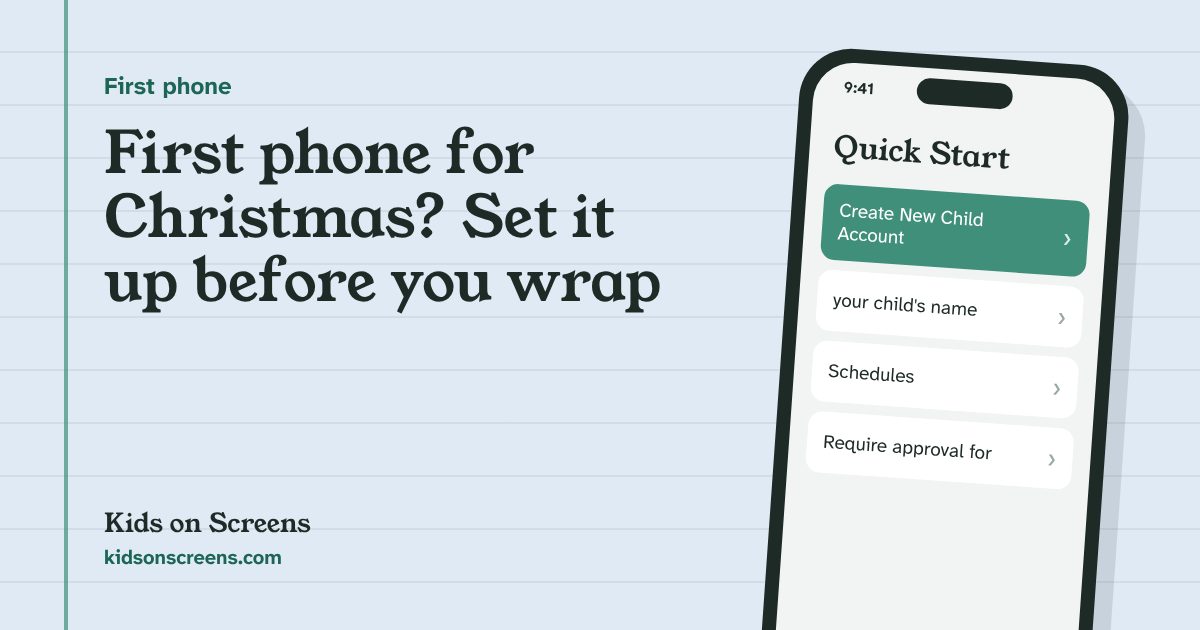
iPhone. Apple says a Child Account is required for children under 13 and available up to 18 (Apple: Set up an iPhone or iPad for your kid). Turn on the new iPhone, then:
On the Quick Start screen, hold your own iPhone close to it (it needs iOS 16 or later and Bluetooth on), or choose Set up Without Another Device. When asked who will use the device, choose Create New Child Account.
Android. During the phone’s setup, when asked to sign in, tap Create account. If you don’t see it, tap More options, then For my child. Google may confirm consent with a credit card: you aren’t charged, but a temporary authorization may appear and is usually released within 48 hours (Google: Create a Google Account for your child). One more reason to do this days ahead.
Step 3: Turn on limits before you rewrap
With the account in place, set the basics from your own phone. You can loosen them later; starting strict and relaxing is easier than the reverse, and the AAP suggests starting with fewer apps, no browser and stricter time limits.
iPhone (iOS 27):
After Get Started, the parental controls setup walks you through content, communication, available hours, school hours, time allowances and a Screen Time passcode. Every family device needs version 27 for the new controls (Apple Support). Our iPhone Screen Time guide covers each screen.
Android (Family Link):
Set downtime for the night and school time for school days, then a daily limit under Screen time > Time limits > Daily limit (Google: schedules, Google: daily limits). Our Family Link guide has the full steps.
Step 4: Require approval for downloads and purchases
New phones often come with gift cards. Decide before Christmas what your child can download on their own.
- iPhone: when your child asks for more time, the request comes to you in Messages, and Apple’s page explains how you approve your child’s purchases, downloads and requests (Apple: approve your child’s purchases, downloads and requests).
- Android: in Family Link, choose what needs your approval:
Google’s approvals only cover purchases made with Google Play billing (Google), not payments made inside an app another way.
Step 5: Print the family rules and wrap them with the phone
Settings can’t say “be kind in group chats”. The AAP suggests a phone agreement and checking in with your child “every few weeks” (AAP).
Our free printable phone contract for kids has space for your own rules and signatures, for the grown-ups too. Fold it into the box: reading and signing it together can be part of opening the gift.
Step 6: Plan Christmas Day around more than the screen
A new phone tends to take over the day. If you’d like some screen-free time too, set it up in advance: a few screen-free activity cards on the table, or the last days of an advent activity calendar. If the phone was the top wish on your child’s Christmas wish list, the list’s other boxes (something to do together, a gift to give) are good ideas for the rest of the day. If you set available hours or downtime in step 3, they already apply on Christmas Day.
What this setup can’t do
- It doesn’t make a child ready. Settings back up your rules; they don’t replace the talks the AAP recommends.
- Website filters have limits. Apple documents its website filtering for Safari, and Allowed Contacts covers only Phone, FaceTime and Messages and needs iCloud Contacts (Apple: Allowed Contacts). Other apps have their own settings.
- Family Link doesn’t show messages. Google says parents can’t read emails or messages, listen to calls or see past searches or Chrome history (Google).
- Approvals don’t cover everything bought inside apps. See step 4.
- Each game or app has its own controls. If the phone comes with Roblox, see Roblox parental controls; all device and app guides are on our parental controls page.
Quick checklist
- Decided: phone, smartwatch or basic phone, and no social media yet if under 13.
- Charged, updated and on Wi-Fi.
- Child Account (iPhone) or child Google Account with Family Link (Android) created.
- Downtime or available hours, daily limit and passcode set.
- Download and purchase approvals on.
- Phone contract printed and in the box.
- Phone turned off and rewrapped.
Questions parents ask
What is the right age for a first phone?
The American Academy of Pediatrics says research doesn't point to one perfect age when kids are ready for a smartphone; it depends on developmental readiness and maturity. Separately, the AAP recommends delaying social media until age 13.
Can I set up the phone before Christmas without my child?
Yes. On iPhone you create the Child Account during setup with your own iPhone nearby; on Android you create your child's Google Account during setup with Family Link. Your child doesn't need to be there. Then turn the phone off and rewrap it.
Why set it up days before, not on Christmas morning?
Updates, account creation and settings take time. On Android, Google may place a temporary card authorization to confirm consent, usually released within 48 hours. Doing it early keeps Christmas morning about the gift, not the setup.
Can I manage my child's iPhone from my Android phone, or the other way round?
Family Link runs on a parent's iPhone, but it can't supervise a child's iPhone. Apple's controls are managed from your own Apple device through Family Sharing. Matching the child's phone to the parent's platform is simpler.
Is a smartwatch or basic phone a better first gift?
It can be. The AAP lists a carrier flip phone with calls and texts only, or a smartwatch or starter smartphone with restricted apps, as ways to start small and add more as your child shows they're ready.
Planning a first phone? See every first-phone step in order.