YouTube Kids vs Supervised YouTube: Which to Choose (2026)
YouTube Kids or a supervised YouTube account? What each one shows and blocks, the setup steps, and which fits your child's age, from YouTube's help pages.
YouTube Kids is a separate app with a smaller, simpler selection of videos, and the only option with an Approve content yourself mode, so it suits preschoolers and younger children. A supervised YouTube account is regular YouTube for children under 13, with more videos and music, comments and uploads turned off, and a content setting you pick (9+, 13+ or 16+). YouTube describes its first supervised setting as “for families ready to move on from YouTube Kids” (YouTube Help).
This guide follows YouTube’s own help pages, linked in each section, checked in November 2026. We have not tested these steps on a device, and YouTube changes menu names from time to time, so the words on your screen may differ slightly.
Before you start: the two options side by side
YouTube describes YouTube Kids as “a safer and simpler account for children” with “a smaller selection of videos than a supervised account on YouTube”, and the supervised account as “a parent-managed version of standard YouTube with limited features and digital wellbeing protections” (YouTube Help).
| YouTube Kids | Supervised YouTube account | |
|---|---|---|
| App | Separate YouTube Kids app | Regular YouTube and YouTube Music apps |
| Ages | Preschool (4 and under), Younger (5-8), Older (9-12) | Under 13 (or the relevant age in your country) |
| Content settings | Preschool, Younger, Older, or Approve content yourself | Older kids (9+), Teens (13+), Older teens (16+) |
| Search | Can be turned off; none with Approve content yourself | Limited by the content setting |
| Comments | Not covered on the pages we read | Turned off; Teens and Older teens can read video comments |
| Uploads and purchases | Not covered on the pages we read | Turned off (channel, uploads, Shorts creation, memberships, movies) |
| Who it suits best | Younger children, or any child whose videos you want to pick | Children ready to move on from YouTube Kids |
Sources: YouTube Kids setup, content settings for supervised accounts, what a supervised experience is.
You’ll need your own Google Account. For YouTube Kids, YouTube asks you to verify your birthday on your Google Account to confirm you’re over 18 (YouTube Kids Help). If your child uses an iPhone or iPad, YouTube suggests reviewing the Content & Privacy Restrictions settings on that device before downloading the apps (YouTube Help); our iPhone Screen Time guide shows where those are.
Step 1: Choose by your child’s age
YouTube Kids search is limited by the setting you choose: content recommended for kids 4 and under (Preschool), 8 and under (Younger) or 12 and under (Older). With Approve content yourself, your child “can only watch videos, channels, or collections that you’ve approved” and can’t search (YouTube Kids Help).
The supervised account settings each “generally align with content ratings for viewers” of a given age (YouTube Help):
- Older kids (9+): “for families ready to move on from YouTube Kids”.
- Teens (13+): everything in Older kids plus a wider range of content.
- Older teens (16+): “almost everything on YouTube videos except for videos marked as 18+”.
So the question is less “which app is safer” and more “how much do I want to choose myself”. If you want to pick every video, only YouTube Kids does that. If your child wants the music, the gaming channels or the school videos their friends watch on regular YouTube, a supervised account at Older kids is the usual next step.
Step 2: Set up YouTube Kids
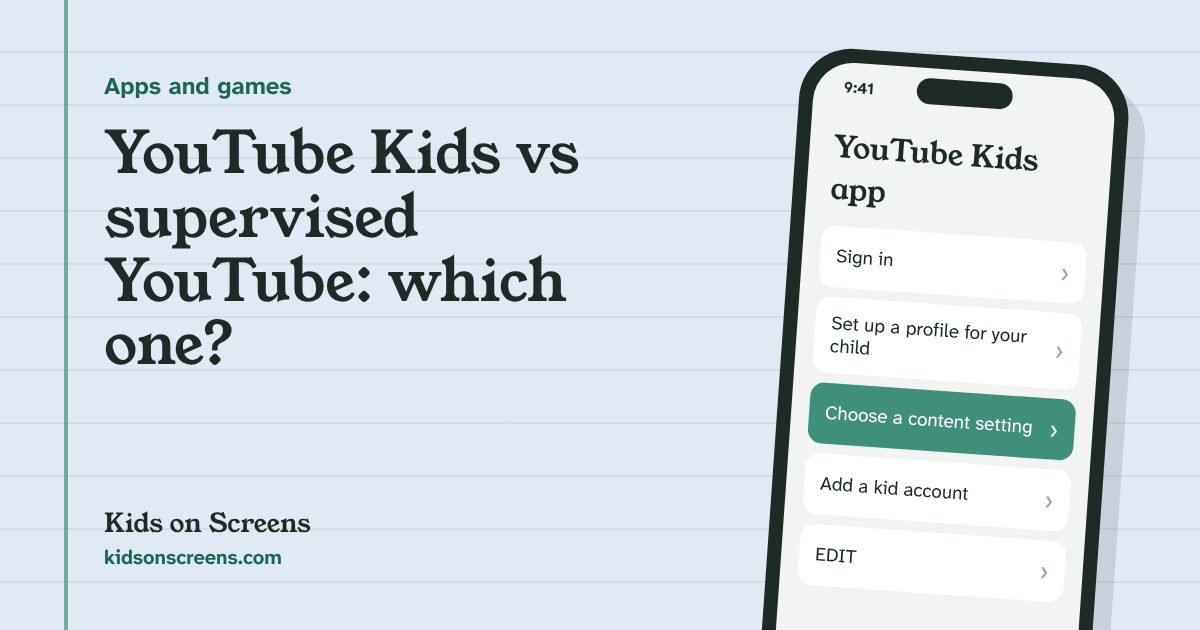
- Open the YouTube Kids app and sign in with your Google Account. Confirm the parental consent information and enter your password.
- Set up a profile for your child: first name or nickname and age (birth month is optional). The app uses the age to customize the experience.
- Choose a content setting: Preschool, Younger, Older or Approve content yourself.
- Your child then picks their profile and starts watching.
You can skip signing in by solving a math problem, but you get fewer options and controls (YouTube Kids Help). Once signed in, you can turn Search on or off, block channels, unblock content, pause or clear history, and review watch history on your child’s device (YouTube Kids settings).
Step 3: Set up a supervised YouTube account
From the YouTube app on your own phone, YouTube’s steps are (YouTube Help):
- Sign in to the YouTube app with your Google Account.
- Go to Family Center under Settings.
- Choose add a kid account and follow the steps to create a supervised kid account.
- Switch between your account and your child’s through the Who’s Watching page or Switch account in the You tab.
This path doesn’t give access to YouTube Music. For that, or to use your child’s own device, your child needs their own Google Account linked to yours, for example one made with Google Family Link. Then you can start from your child’s device (YouTube app > Get started, with your password), from families.youtube.com, or in the Family Link app under Controls > YouTube > YouTube & YouTube Music (same source).
If your child already has a YouTube account, adding supervision deletes their existing YouTube videos, chats, comments and purchased or rented videos (Google For Families Help). Download anything they want to keep first.
Step 4: Change the content setting and block channels
From your linked parent account, open Family Center, select your child, and tap EDIT next to Content Settings. From the same screen you can block channels, clear watch and search history, and pause watch or search history so new views and searches don’t shape recommendations (YouTube Help). In the Family Link app the same settings are under Controls > Content restrictions > YouTube (same source).
You can change the content setting at any time (YouTube Help).
Step 5: Turn off autoplay and set time reminders
In Family Center, turn on Disable autoplay: your child can’t turn it back on while it’s set. Under Time management you can set a daily Shorts feed limit, which resets each morning, and take a break or bedtime reminders (YouTube Help). US parents can also see Conversation topics based on their child’s interests, in English, once there’s enough watch history (same source).
These are reminders and a Shorts limit, not a lock on the whole app. For a daily limit on YouTube or YouTube Kids, use the device: App limits in Family Link or Time Allowances in Screen Time on iPhone and iPad (see our iPhone guide).
What YouTube Kids and supervised accounts can’t do
- They don’t catch everything. YouTube Kids warns “You may find something inappropriate that we missed” (YouTube Kids Help), and for supervised accounts YouTube says “our automated systems aren’t perfect and will make mistakes” (YouTube Help). Block and report what you find.
- Supervised accounts aren’t hand-picked. Only YouTube Kids has an approve-only mode.
- Turned-off features on supervised accounts include comments, live chat, channels, video uploads, Shorts creation, channel memberships, movies and TV purchases, Super Chat, incognito, personalized ads and Restricted Mode (YouTube Help).
- They only cover YouTube. Videos on other apps or in a web browser need the device’s own controls.
- Teens are different. From 13 (or your country’s age), supervision is a voluntary teen account: parents see insights into channel activity but can’t decide what content their teen sees (YouTube Help).
Suggested starting points by age
These are starting points built from YouTube’s own age bands, not rules. Adjust them to your child.
| Age | Option | Setting |
|---|---|---|
| 4 and under | YouTube Kids | Preschool, or Approve content yourself |
| 5-8 | YouTube Kids | Younger; consider Search off |
| 9-12 | YouTube Kids or supervised account | Older (YouTube Kids) or Older kids (supervised) |
| 13+ | Own account, optional teen supervision | No content setting |
Whatever you choose, it helps to agree when and where YouTube is watched. The AAP’s family media plan suggests screen-free zones “such as the dinner table, during homework and before bed” (HealthyChildren.org), and our free screen time rules poster puts those agreements on the fridge. For other apps your child uses, see our Roblox parental controls guide and every device guide in parental controls.
Questions parents ask
What is the difference between YouTube Kids and supervised YouTube?
YouTube Kids is a separate app with a smaller selection of videos. A supervised account is a parent-managed version of regular YouTube for children under 13, with more videos and music, limited features and a content setting you choose.
What age is YouTube Kids for?
YouTube Kids content settings are Preschool (4 and under), Younger (5 to 8) and Older (9 to 12). You can also choose to approve content yourself, so your child can only watch videos, channels or collections you've approved.
Can my child comment or upload videos with a supervised YouTube account?
No. YouTube lists comments, live chat, channels, video uploads, Shorts creation and purchases among the features turned off for supervised kid accounts. YouTube says children on the Teens or Older teens setting can read video comments.
Can I set a time limit on YouTube Kids or supervised YouTube?
For supervised accounts, Family Center has Time management with a daily Shorts feed limit and take-a-break or bedtime reminders. For a hard limit on the whole app, use your device's limits, such as Family Link app limits on Android or Screen Time on iPhone and iPad.
What happens when my child turns 13?
Supervised kid accounts are for children under 13 (or the relevant age in your country). After that, a teen can use a voluntary supervised teen account, where parents see insights into channel activity but don't choose what content their teen sees.
Setting up other devices too? See parental controls for every device.